

Diagnosing No Display Faults: PCB vs Display Board Failures
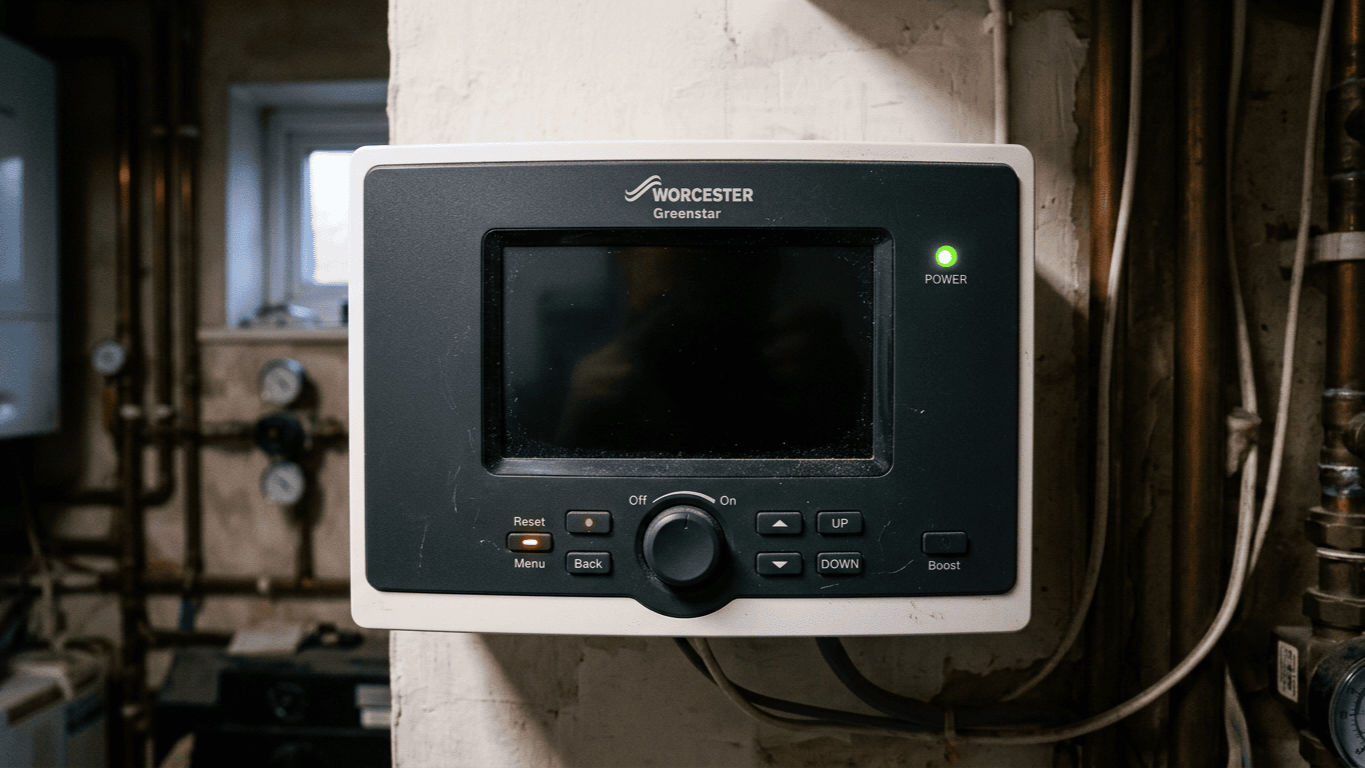
You're staring at a blank screen on an HVAC control panel, and the customer is breathing down your neck. The system is running because you can clearly hear the compressor. However, there is absolutely no display. It is as if the unit has suddenly gone mute.
I've seen this scenario play out hundreds of times. Often, a technician will swap the entire control board assembly without knowing the root cause. Specifically, they don't know if it's the main PCB or just the display that's failed. That is an expensive guess.
In this game, guessing costs you money and your professional credibility. The difference between a PCB failure and a display failure isn't just academic. Instead, it is the difference between a fifty-pound fix and a three-hundred-pound one. More importantly, diagnosing no display faults is about knowing your craft well enough to get it right the first time.
Understanding The Two-Board Architecture
Most modern HVAC systems use a split-board design. The main PCB handles all the logic, power distribution, and control signals. Conversely, the display board, which is sometimes called the user interface board, shows information. It also takes input from buttons or touch controls.
Think of the relationship between these two boards like a car's engine and its dashboard speedometer. If the needle stops moving, you need to know if the engine has actually stalled. Or, perhaps the dial is just broken. At trade heating supplies, we often see installers replacing the "speedometer" when the "engine" logic is the real problem.
The two boards communicate through a ribbon cable connection or a dedicated wire harness. When that display goes dark, you have four potential culprits. These are the main PCB, the user interface board, the connection between them, or the power supply. Your job is to eliminate these possibilities systematically.
Initial Visual Inspection: What You Can See Without Tools
Before you reach for a multimeter, you should use your eyes. I once watched an apprentice spend three hours on a freezing Monday morning trying to replace an entire control assembly. If he'd simply checked for a loose ribbon cable connection first, he would've seen the issue. A locking tab had vibrated loose.
He would have saved himself a frozen nose and the customer a hefty bill. Start by checking the physical connections first. Look for obvious damage such as burn marks or swollen capacitors. These will look like little batteries that have expanded or started leaking.
Furthermore, check for broken solder joints where components meet the board. You should also look for corrosion from moisture or refrigerant leaks. If you are inspecting a Gledhill GT149 sensor connection, ensure no moisture has tracked back into the electronics. If you spot any physical issues, you have likely found your culprit.
Testing For Power: The First Electrical Check
The user interface board needs stable power to function correctly. This sounds obvious, but many technicians replace good displays because they didn't verify the supply first. Most display boards run on low voltage, typically 5V or 12V DC.
The main PCB usually has a regulator that steps down the voltage for these logic circuits. If you suspect a voltage regulator failure, you should locate the power pins on the display board connector. Your service manual will show which pins carry the voltage.
However, if you're working without a manual, the red and black wires are usually your positive and ground. Measure the voltage at the input with the system powered on. You should see a stable reading within 10% of the rated value. If you're getting zero volts, your problem is likely a voltage regulator failure on the main PCB.
The Communication Test: Is The PCB Talking?
Assuming the power is good, you must ask if the main PCB is sending signals. This is where diagnosing no display faults gets interesting. The main PCB sends data through a specific serial communication protocol such as I2C or SPI.
You don't need to understand the complex code to test if communication is happening. You simply need to see signal activity. Set your multimeter to AC voltage. Even though it is a DC circuit, you are measuring the changing pulses of the serial communication protocol.
Touch the data lines in the display board connector. If you see any voltage reading, even 0.5V AC, there is signal activity. This means the main PCB is trying to talk. If you see activity but no display, the user interface board has likely failed. If there is no activity, the main PCB logic has probably initialised a fault.
Isolating Display Board Failures: Specific Symptoms
Display failures usually have very specific patterns. You won't see random system behaviour. Instead, you'll see issues that point directly to the interface hardware. Partial display operation is the clearest sign of this.
If some segments light up while others stay dark, the user interface board is failing. The main PCB generally works or it doesn't. It won't send half-signals to a screen. Flickering or dimming often indicates failing backlights or poor regulation on the display itself.
Physical damage is also an obvious indicator. Cracked LCD screens or damaged touch panels are display problems, full stop. If you are replacing a Baxi assembled temperature sensor, take care not to nudge delicate display components. I once had a unit where the screen worked for thirty seconds and then faded to black. The display board's internal regulator was overheating, meaning only the interface needed replacing.
Identifying Main PCB Failures: System-Wide Symptoms
Main PCB failures rarely present as just a dead screen. Because the PCB controls everything, you will usually see multiple system symptoms. Complete system failure alongside a dark screen almost always points to the main board.
If the compressor won't run and the fan is dead, your main board is gone. Erratic behaviour is another strong indicator. If the system is cycling randomly, the logic section has failed. The display is probably fine but has nothing to show because the "brain" is scrambled.
Blown fuses or tripped breakers on power-up also suggest a short on the main PCB. Don't just replace the fuse and try again, as you will likely create expensive fireworks. Find the short first. This usually means replacing the board. If you've got a spare IMIT LS1 limit thermostat, you can verify that external safety limits aren't causing a lockout.
The Connection Problem: Don't Overlook The Obvious
The connection between the boards fails more often than you'd think. Ribbon cables get pinched and connectors corrode over time. I've diagnosed many "failed" boards that simply needed their pins cleaned or reseated.
Remove and reseat all connectors between the boards. Look for bent pins or debris in the housing. Clean the contacts with electrical contact cleaner. Please do not use WD-40. It leaves a residue that can interfere with the serial communication protocol.
If you're dealing with a ribbon, inspect it under a good light. Flex it gently to look for cracks in the conductors. These cables often fail at stress points where they bend near the display board connector. For wire harnesses, check continuity on each wire from end to end. A broken wire in a harness is a five-pound fix instead of a three-hundred-pound replacement.
Using Service Mode And Diagnostic Codes
Many HVAC systems have a service mode to help you with diagnosing no display faults. The manual will explain how to enter it, usually through a specific button combination. In service mode, the system might run a display test pattern.
If you can enter service mode and see codes, your display is working perfectly. The problem is either a software configuration or a sensor issue preventing normal operation. Using a RF wireless combi pack 4 can sometimes help you bypass the physical panel. This allows you to see if the system responds to remote commands.
Some units will output information through LED blinks on the main PCB if the screen is dark. Count the blinks carefully. They are telling you exactly what has failed. A communication error code confirms the main PCB knows the display isn't responding. This narrows your search considerably.
The Systematic Approach: Decision Tree For Diagnosis
When you are faced with a no-display fault, work through this sequence to save time. This methodical approach ensures you don't miss the easy fixes. Follow these steps in order:
- Check physical connections: Reseat everything and look for cable damage.
- Verify power: Check the input at the user interface board. No power means a main PCB issue.
- Check for signal: Look for AC voltage activity on data lines to verify the communication pulses.
- Test system operation: If the whole unit is dead, the main PCB is the primary suspect.
- Look for partial function: Any backlight or partial character means the display hardware is powered.
This systematic approach eliminates guesswork. You are not just troubleshooting; you are eliminating possibilities until only one remains. If a Worcester flue gas limit sensor has tripped, for example, the main board might shut down the display for safety.
Conclusion
Correctly diagnosing no display faults isn't about intuition alone. Instead, it is about the systematic elimination of possibilities. The difference between a PCB and a display failure comes down to where the problem sits. Is it isolated to the screen, or does it affect the whole system?
Always start with the basics: physical inspection, power verification, and connection checks. Move to signal testing and system behaviour analysis. Use service modes and blink codes whenever they are available. Work methodically, and you will identify the failed component without wasting money on parts you don't need.
The key is understanding that these boards serve very different functions. The main PCB is the brain that controls everything. The display is just the face that shows you what the brain is thinking. When the face goes blank, you need to find out if the brain has stopped talking. If you need help identifying the right replacement part, reach out to our experts for professional support.